20251202 - I connected Gemini to my Gmail and Google Drive and it changed how I research
- 分类:
根目录笔记 - 创建:
2025-12-02 - 标签:
#Tom's Guide #会员 #黑色星期五 #折扣 #独家内容 #互动问答 #奖励
20251202 - I connected Gemini to my Gmail and Google Drive and it changed how I research — here's how to do it
摘要
准备好节省!成为Tom's Guide会员,即可开始节省购物。会员可以访问我们的独家优惠、奖励、竞赛、游戏等。
要点
- 提供互动问答环节
- 每周举行会员竞赛
- 会员可获取独家内容
- 提前访问新功能
- 私人论坛与会员连接
- 月度奖励及惊喜礼物
正文
🎯
Live Q&A Sessions
Weekly interactive sessions
🏆
Member Competitions
Win exclusive prizes
📚
Exclusive Content
Premium articles & videos
⚡
Early Access
First to see new features
💬
Private Forums
Connect with members
🎁
Monthly Rewards
Surprise gifts & perks
Black Friday Pros Start Early Join, Save, Play and Win!
Ready, set, save! Become a Tom's Guide member and start saving on your shopping now. Members get access to our range of exclusive offers, rewards, competitions, games and more.
Join the Tom's Guide Club for quick access. Enter your email below and we'll send confirmation, and sign you up to our newsletter.
By submitting your information, you confirm you are aged 16 or over, have read our Privacy Policy and agree to the Terms & Conditions. Geographical rules apply.

(Image credit: Shutterstock)
Gemini Deep Research can now tap directly into your , Drive, and Chat, pulling that information into your research alongside results from across the web.
If you're already using Deep Research for complex topics or vacation planning, you'll get far more detailed and personalized reports by connecting your Gmail, Drive, and conversation history. This additional context from your inbox and saved files gets blended with information from online sources, ensuring you won't miss any important details.
This feature is available to all Gemini users, so if you’re ready to try it out for yourself, here’s exactly what you need to do.
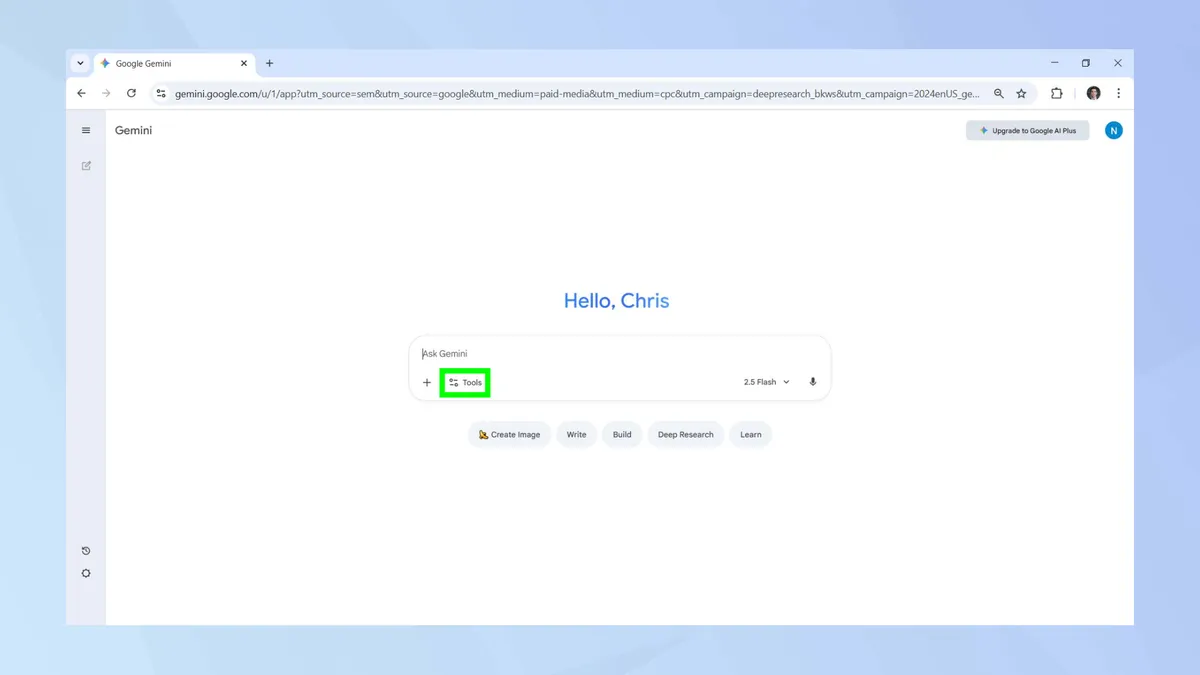
2. Go to Deep Research
(Image: © Tom's Guide)
Deep Research is switched off by default. To turn it on, click on tools.
4. Choose your sources
(Image: © Tom's Guide)
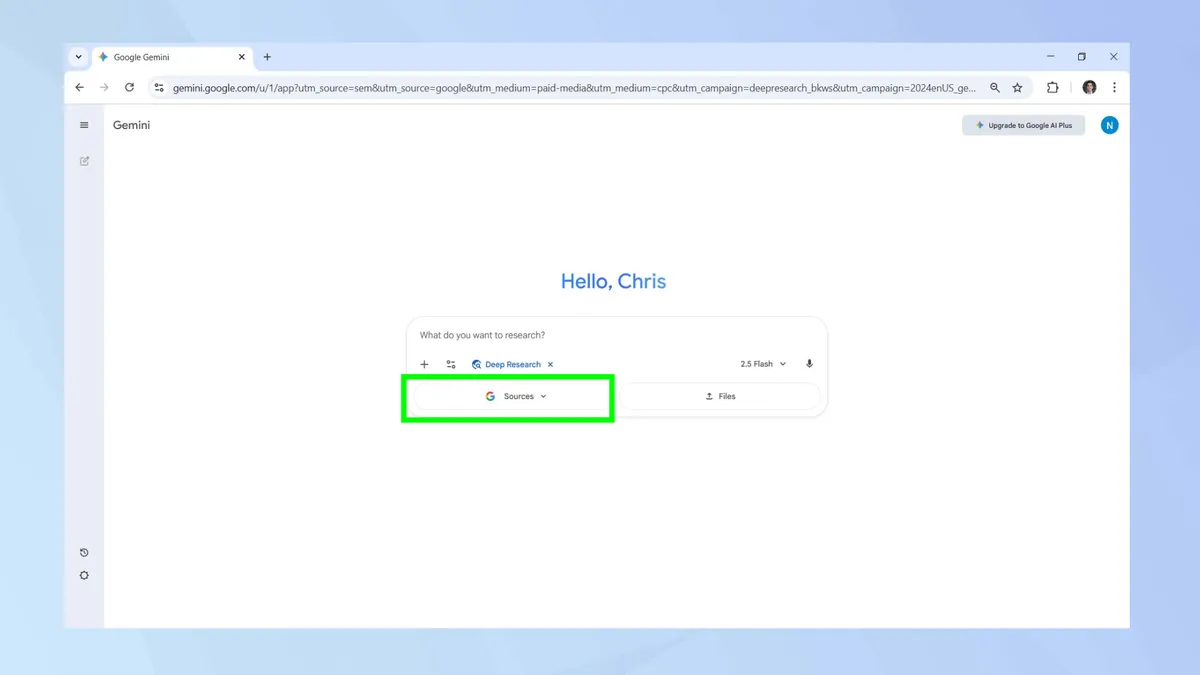
The default source for Deep Research is Google search, the original single source that this model launched with. Today you can connect to additional sources like your own Gmail, Drive, and Google Chat.
To select one of these new sources, click the sources tab, which appears after you’ve correctly enabled Deep Research.
5. Enable your sources
(Image: © Tom's Guide )
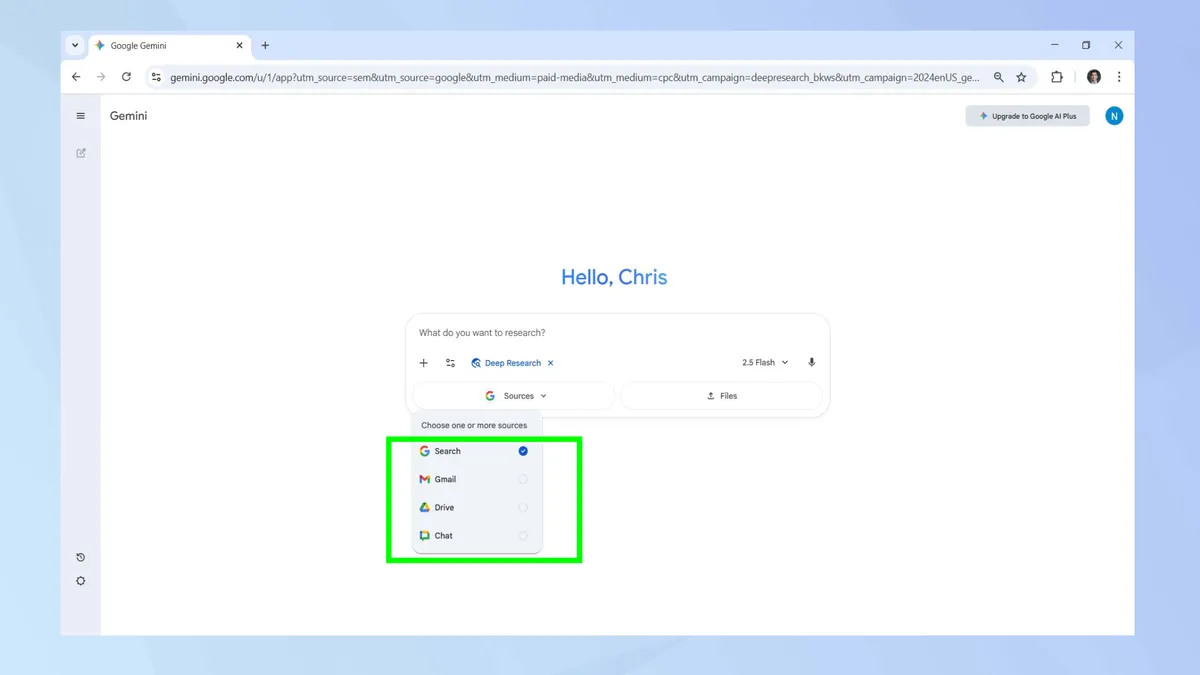
A drop-down menu should appear, giving you the option to enable Gmail, Drive, and Chat as additional sources. Select the sources you wish Deep Research to use.
While you have to choose at least one source, you’re free to enable them all at the same time.
6. Start your research
(Image: © Tom's Guide )
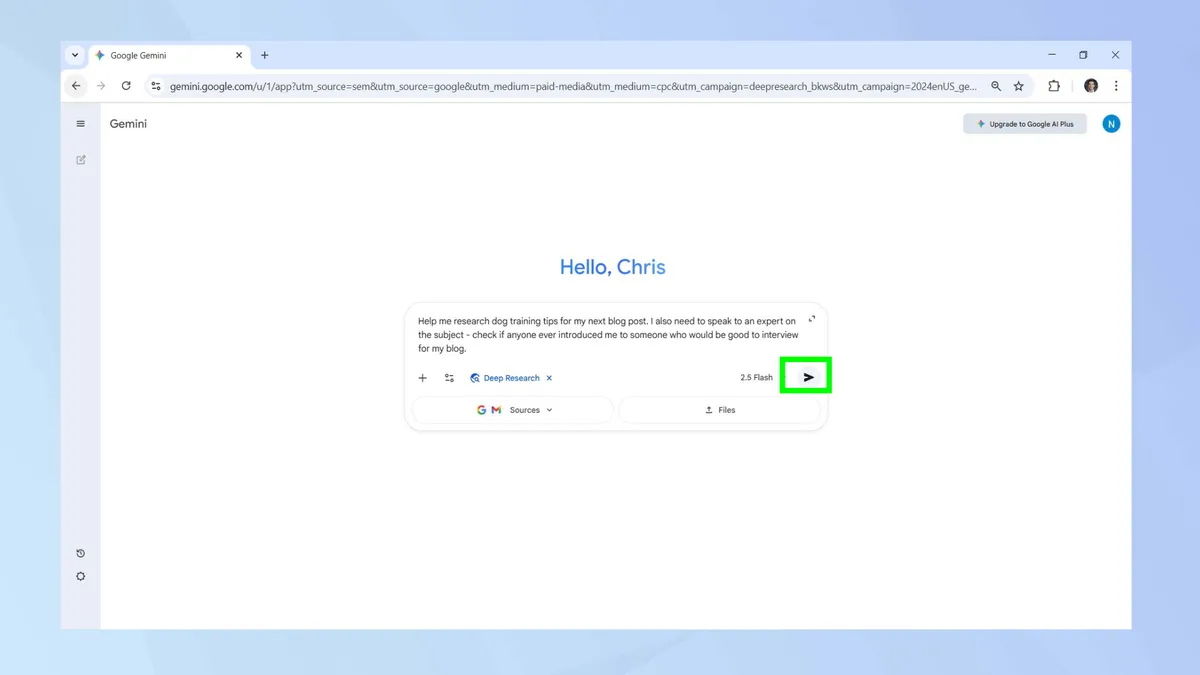
Type your prompt, hit enter, and let Deep Research handle the heavy lifting. For this guide, I asked Gemini to gather dog-training tips for a blog post.
I also emailed myself the name of a dog trainer willing to be interviewed to test whether Deep Research could surface that information straight from my Gmail inbox (spoiler alert: it succeeded!)
7. Edit your plan
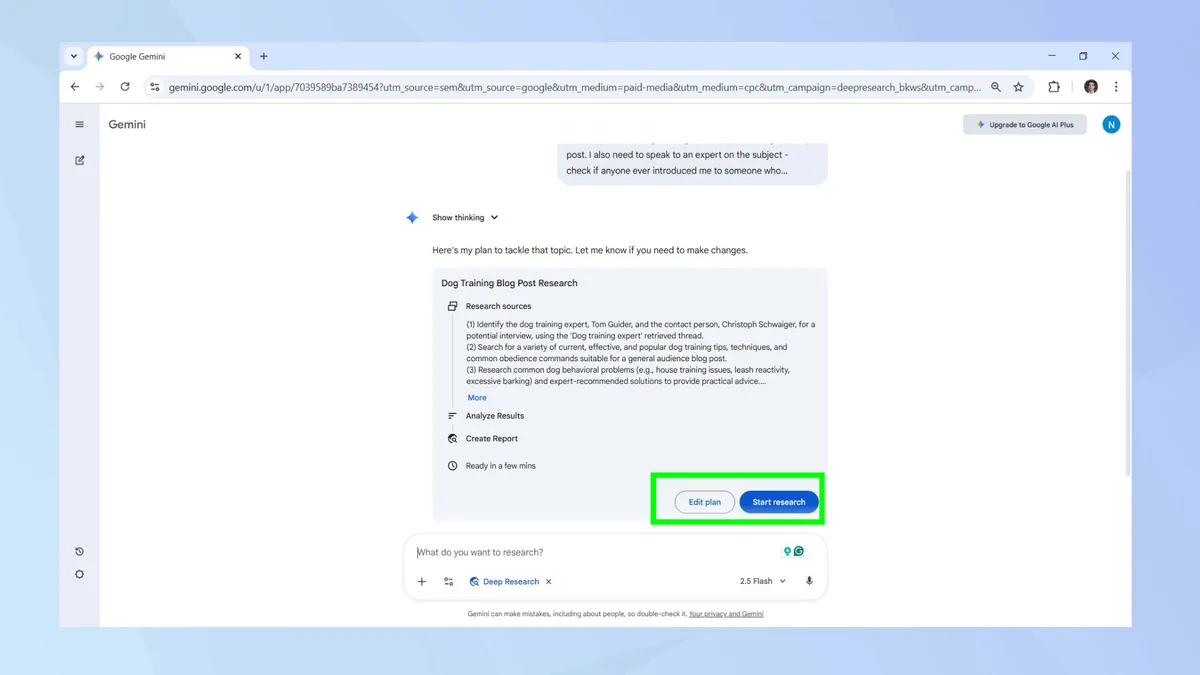
(Image: © Tom's Guide )
Before it gets to work, Deep Research will present its initial plan to tackle your chosen topic. If there’s anything you wish to amend, click edit plan. Once you’re happy, click on start research to begin.
8. Share the report
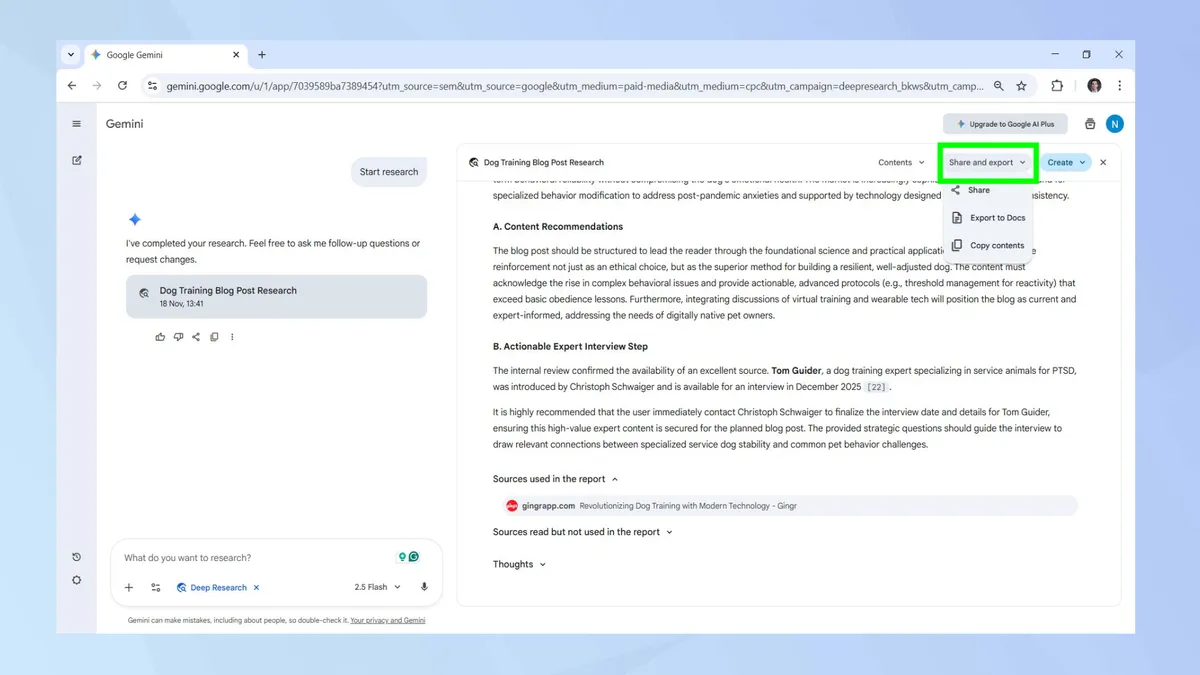
(Image: © Tom's Guide)
With Deep Research’s report now complete, combining internet sources and relevant content found in your Gmail, Drive, and Chat, you can disseminate it.
Click the share and export tab to choose whether to share it externally, export the report to Docs, or to simply copy the text to your clipboard.
[
](https://news.google.com/publications/CAAqKAgKIiJDQklTRXdnTWFnOEtEWFJ2YlhObmRXbGtaUzVqYjIwb0FBUAE)
Follow Tom's Guide on Google News and add us as a preferred source to get our up-to-date news, analysis, and reviews in your feeds. Make sure to click the Follow button!
- How to use Google Gemini's Guided Learning feature
- AI-generated images get roasted — but they're great for this one thing
- 5 smart ways to use Gemini Live with your phone right now
Category
Back to Mobile Cell Phones
Brand
Storage Size
Colour
Condition
Price
Any Price